
NexJ CRM has two ways of managing leads, Classic Leads and Integrated Lead Management. Only one method can be enabled at one time.
In the Classic Leads feature, a lead operates as a separate object that can be linked to a contact. Classic Leads uses a separate workspace for working with leads and has a reduced ability to leverage activity types. When a lead progresses to a prospect or a client, it is converted to a contact. Any lead-specific information in this topic applies only to deployments that include the Classic Leads feature.
In Integrated Lead Management, a lead is an entity similar to a contact, which can be managed through a list within the Contacts workspace. The experience working with a lead is identical to that of working with any other contact. For example, any activity type can be created for a lead. Creating a lead and progressing it to a prospect or client is a seamless process. If your deployment includes the Integrated Lead Management feature, importing leads follows the same process as importing other contacts.
Business administrators can import contacts or leads records into NexJ CRM from a legacy system to a staging area in NexJ CRM using the Import workspace 
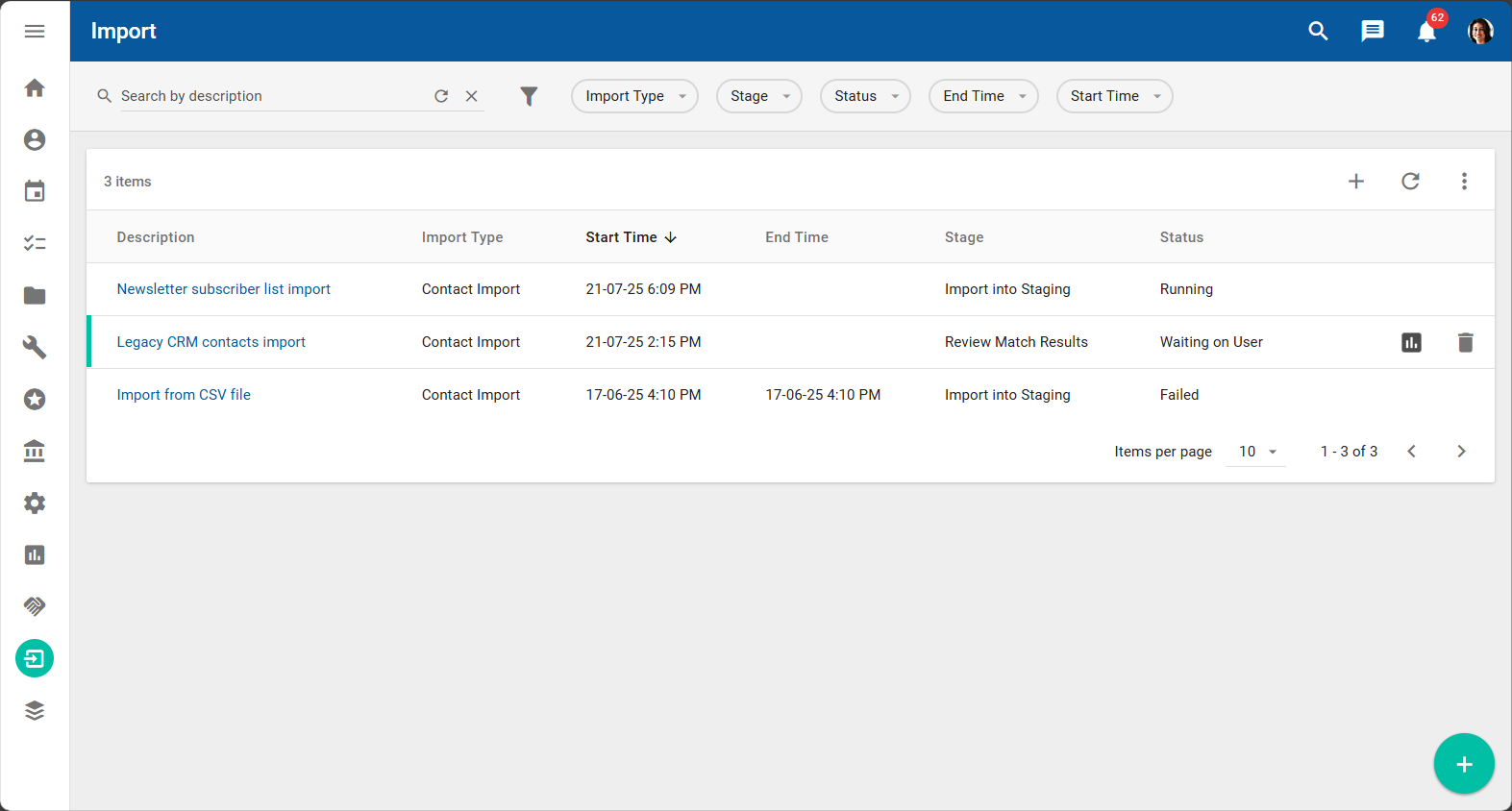
An example of the Import workspace is shown in the following screen capture:
The import process consists of the following steps:
-
Upload the import files (either CSV or ZIP files) into the staging database in NexJ CRM. For more information, see Import contacts and leads data or Import contacts and leads data.
-
Review the uploaded staged data to confirm the contact details. For more information, see Import contacts and leads data.
-
Review the matched contacts. For more information, see Import contacts and leads data.
-
Process the staged data. For more information, see Import contacts and leads data .
Depending on the security settings of your deployment, the first step might be performed by a business administrator and the rest of the steps by the end users a business, You can either import stand-alone CSV (comma-separated value) files or import packages which contains CSV files as well as mapping and target files.
Importing CSV files
To use a CSV file to import a list of contacts into NexJ CRM:
-
On the Import workspace data table, click the Import button

-
On the Import Data dialog, in the Import Package Type field, select CSV.
-
Select a file in the Select Import File field.
-
Select a predefined mapping in the Select a Mapping field.
-
Optional: To add more CSV files, click Add Import File and repeat steps 3 and 4.
-
Specify a unique import description in the Description file.
-
Click OK.
The import file had been uploaded into NexJ CRM and will be processed.
Importing ZIP files
To use a ZIP file to import a list of contacts into NexJ CRM:
-
On the Import workspace data table, click the Import button
-
On the Import Data dialog, in the Import Package Type field, select ZIP.
-
Select a file in the Select Import File field.
-
Specify a unique import description in the Description file.
-
Click OK.
The import file had been uploaded into NexJ CRM and will be processed.
Reviewing staged data
Before you can review staged contact data on the Import workspace, you must have been granted the ImportProcessView and ImportProcessManage privileges.
The “Review staged data” step in the import process does not apply when you are importing leads. Instead, after you have specified your leads import package, the Review staged data step is automatically completed by NexJ CRM, and you will be asked to proceed to the Review match results step, as described in Reviewing matched results.
After you or your business administrator has imported contacts data, review the staged records by navigating to the Import workspace, and clicking on the import job to open the Import detail page, where you will verify that the data is accurate before you merge it with existing system records. During your review, you can remove old or outdated records that you do not want to import into NexJ CRM. Carrying out this review helps ensure a smooth migration of the data into NexJ CRM.
To find your import job in the Import data table on the Import workspace, you can enter the job's name in the search field or use the following filter chips that are provided by NexJ:
-
End Time - The end date and time for the job.
-
Import Type - The type of import (contact import or lead import).
-
Stage - The stage for the job (for example, Import into Staging, or Review Match Results).
-
Start Time - The start date and time for the job.
-
Status - The status of your job (for example, Running, Failed, Completed, or Waiting on User).
You can also add additional filter chips. For more information about searching for and filtering records, see Searching and filtering in NexJ CRM.
The banner on the Import detail page provides a summary of the import job. You will see that neither the Review staged data stage or Review match results stage have started.
The following screen capture shows an example of a contacts import:
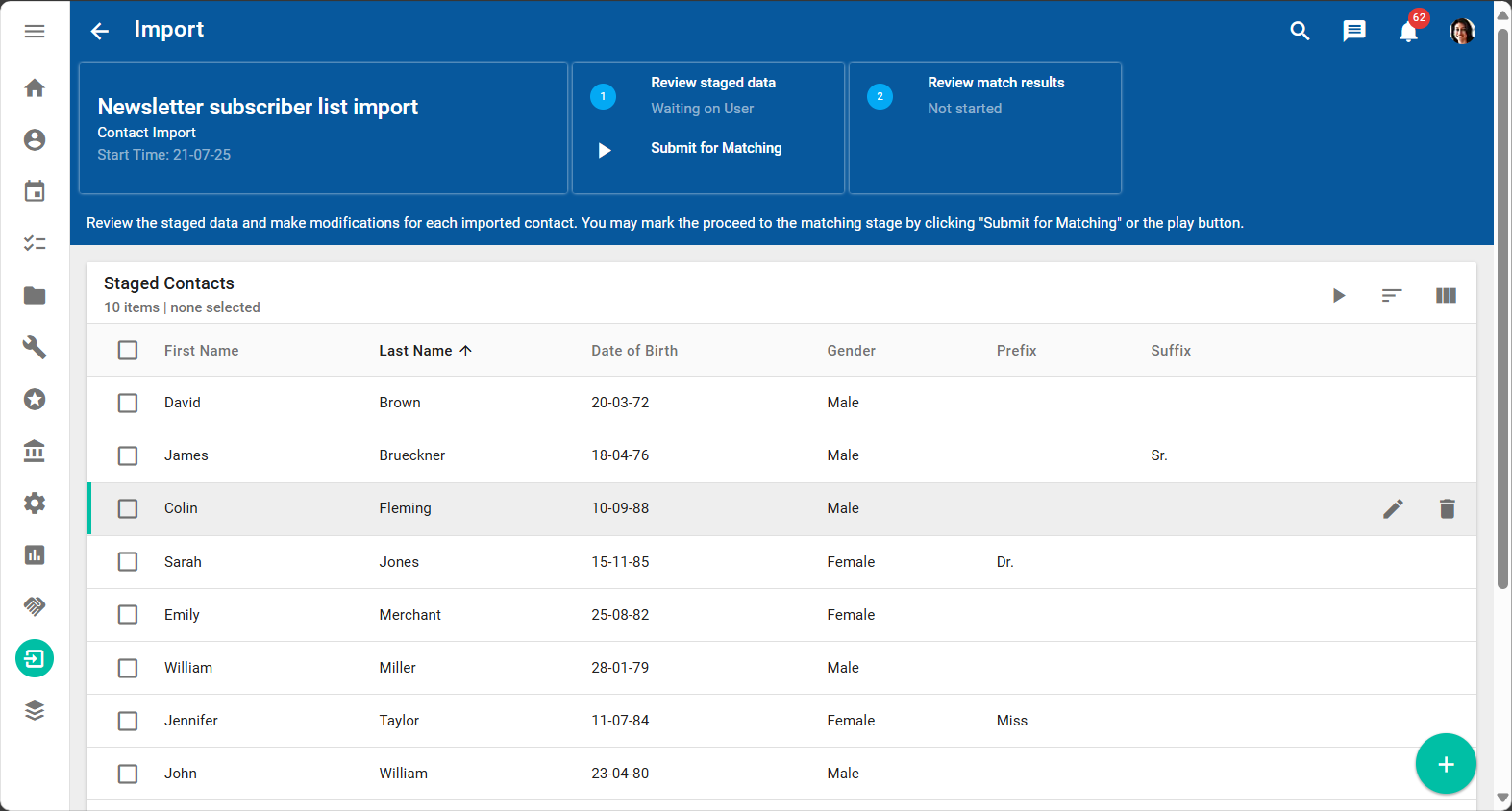
From the Staged Contacts data table, you can:
-
Review all records that were included with the import package.
-
Modify a selected record by clicking the Edit button

-
Exclude a selected record from any further processing by clicking on the More Actions

If you discard a staged record, the action cannot be undone.
You can sort the Staged Contacts or Staged Leads data table by clicking Sort By 

When you are satisfied that the contacts data is correct, submit the data for matching by clicking Submit for Matching.
In order to optimize performance, it is recommended that the size of each submitted batch be limited to 5,000 records.
Wait while the matching process runs in the background. When the process completes, the banner displays that the Review staged data stage is "Completed" and the Review match results stage is "Waiting on User."
You may need to refresh your browser to see the changes in the banner.
You can now review the ranked contact matches on screen.
Contact matching logic
When you submit contact data for matching, NexJ CRM uses algorithms to determine which contact data is new and which data is duplicated in NexJ CRM and should be consolidated with an existing contact record.
The following table lists the data fields that are used by NexJ CRM to match imported contact records and shows percentages for the quality of the match.
Contact matching data fields and match quality values
|
Data field |
Match quality value |
|---|---|
|
First Name |
20% |
|
Last Name |
30% |
|
Birth Date |
30% |
|
Gender |
5% |
|
Zip field of the primary address |
15% |
Lead matching logic
The following table lists the data fields that are used by NexJ CRM to match imported lead records and shows percentages for the quality of the match.
Lead matching data fields and match quality values
|
Data field |
Match quality value |
|---|---|
|
First Name |
15% |
|
Last Name |
15% |
|
Work Phone |
40% |
|
|
30% |
Before completing the import process, you will have the opportunity to review the imported records, and the match quality values, and to specify how to process staged contacts or leads.
For example:
-
For a contact record, if only the gender matches, the match quality is 5%. This is considered a low quality match, so you may choose to create a new contact.
-
For a contact record, if the last name, birth date, and Zip field match, the match quality is 75%. This is considered a high quality match, so you may choose to associate the imported contact record with the existing NexJ CRM record.
-
For a lead record, if only the work phone number matches, the match quality is 40%. This is considered a low quality match, so you may choose to create a new lead.
-
For a lead record, if an email address, work phone number, and at least one first name or last name match, the match quality is 85%. This is considered a high quality match, so you may choose to associate the imported data with the existing NexJ CRM lead.
Reviewing match results
Before you review match results, your import job's Stage column in the Import data table on the Import workspace should display "Review Match Results", and the Status column should display "Waiting on User."
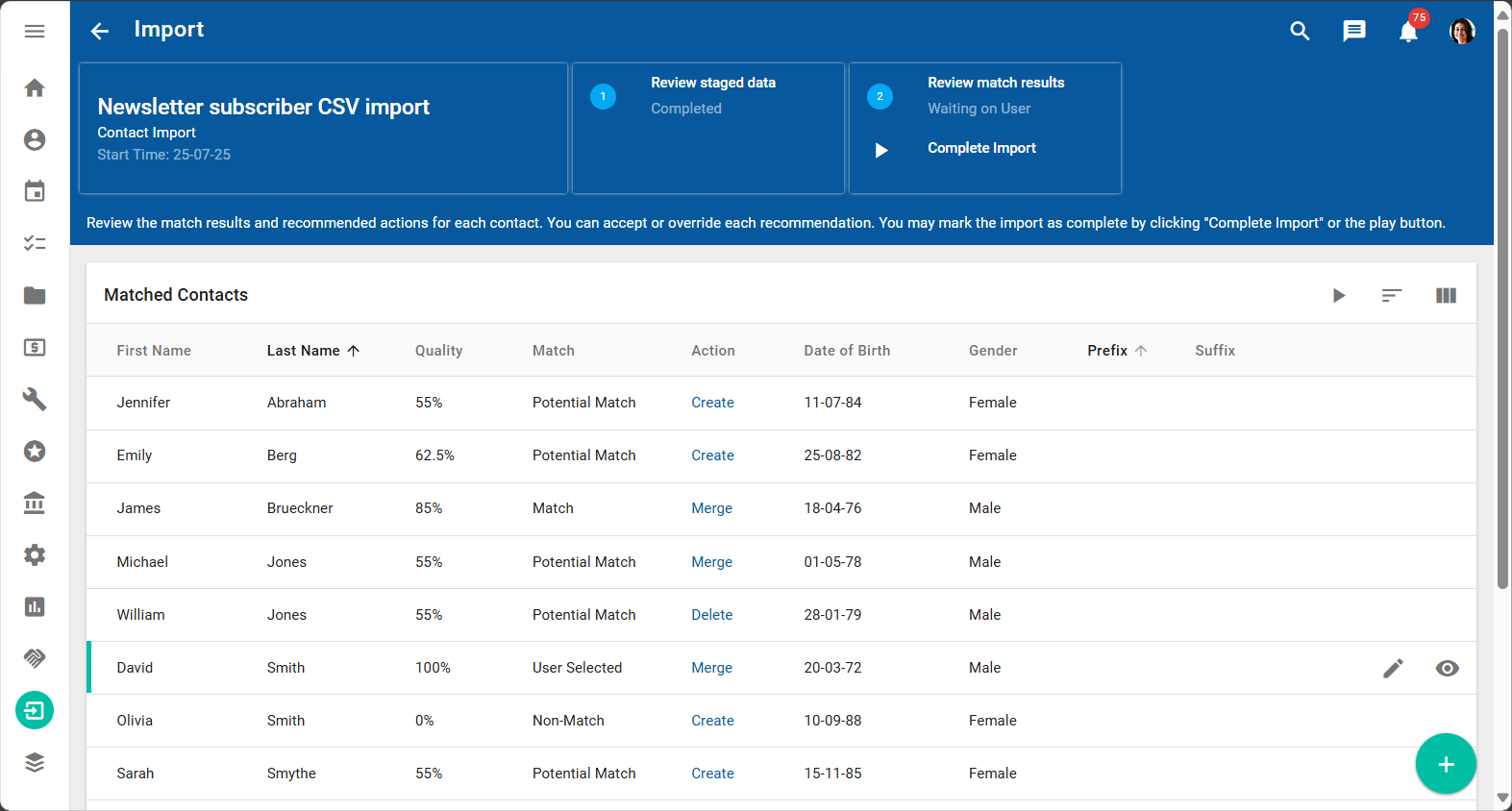
After the matching process has completed, you can review the match results, recommend actions for each record, and process the data. Navigate to the Import detail page and review the match results in the Match column in the Staged Contacts data table.
The system will automatically propose import actions that can be taken. For example, if it finds a contact record with an 100% match or a potential match, it will propose a "Merge" action that displays in the Action column in the Stage Contacts data table. The following table describes the possible matches and proposed actions:
|
Match column |
Action column |
Description |
|---|---|---|
|
Non-Match |
Create |
No match has been found for the record so the system proposes you create the record as a new record. |
|
Match |
Merge |
The system has found a record that matches the staged record and proposes that you merge the duplicate data. |
|
Potential Match |
Create |
The system has found a record that potentially matches the staged record and proposes that you create a new record. |
In the following example, potential matches have been identified by the system in the Match column, and the user has modified the import actions in the Action column to merge David Smith's record with an existing record, and to delete William Jones's record.
When the system has identified a match or potential match for a contact or lead record, select the record, click the Review Match Results button 
Specifying import actions
After you have reviewed the match results, select import actions for selected records to indicate how they should be moved into the existing database. You can select one of the following actions for a selected contact record by clicking on a proposed action in the Action column in the Stage Contacts data table:
|
Import action |
Select when... |
|---|---|
|
Create as a new contact |
The staged contact record does not match with any of the contacts in the Review Match Results page and you want to load it into the database. |
|
Delete staged contact |
You no longer want to add the staged contact record to your database, or if a better contact record already exists within the database and merging would degrade the matched contact's quality. |
|
Merge with selected match |
The staged contact record matches with any of the contacts listed in the Matches section on the Review Match Results page. You must select an existing contact record with which to merge the imported data. |
For lead records, choose from the following import actions:
|
Import action |
Select when... |
|---|---|
|
Create new lead |
The staged lead record does not match with any of the leads in the Review Match Results page and you want to load it into the database. |
|
Discard lead |
You no longer want to add the staged lead record to your database, or if a better lead record already exists within the database and merging would degrade the matched lead's quality. |
|
Associate lead |
The staged lead record matches with any of the leads listed in the Matches section on the Review Match Results page. You must select an existing contact record with which to merge the imported data. |
Next, proceed to processing the reviewed data and completing the import.
Processing reviewed data and completing the import
To execute a create, merge, or delete import action, you must process a staged contact or lead. All contacts and leads in the import are processed together.
Before you process a record or all records in the Staged Contacts or Staged Leads data table, confirm that the correct actions are selected for each record in the Action column. When you are ready, click Complete Import in the banner.
Do not continue until you receive a message in the banner stating that the import has been marked as complete.
After the import completes, the Status column for the import job on the Import workspace displays "Completed", the contact or lead records become available in the system, and can be accessed like any other contact or lead records.