
NexJ Studio is the (Eclipse-based) integrated development environment (IDE) for your applications. It provides familiar editors for concepts such as UML class diagrams and activity diagrams. It lets teams design, run, test, and deploy solutions on-premise and in the cloud. Multi-environment support allows you to easily manage QA, staging, integration, and production configurations. It also provides interactive debugging across all platforms. Design-time customization can be modularized to support best practices for customization and upgrades. NexJ Studio supports concurrent changes across large teams, improves designs and consistency, while increasing developer velocity.
NexJ Studio is simply the editor for your applications along with tools to design, build, and run application services.
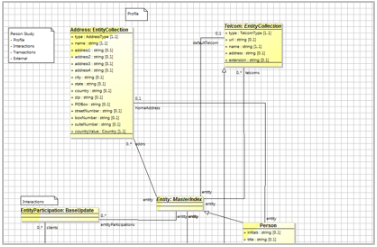
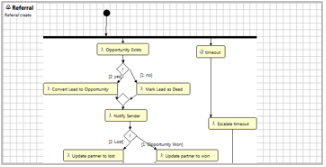
NexJ Studio is run from nexjstudio.exe, which has an associated file nexjstudio.ini that contains settings for Java and other things. NexJ Studio is an Eclipse plugin. For more information on Eclipse, see https://www.eclipse.org. For information on optional launch settings in nexjstudio.ini see https://wiki.eclipse.org/Eclipse.ini
The application designs, which you can create using NexJ Studio, are expressed in a set of Model Description Language (XML) files in your computer's file system. NexJ Studio opens an Eclipse workspace folder and maintains one or more models in that folder. You open one Eclipse workspace at a time (and usually stick with one for most of your development, for example, c:/work/models) and can select one model at a time in the navigator view as described below. The folder structure of a typical Eclipse workspace is illustrated at the end of this section.
Perspectives and views
NexJ Studio uses Perspectives and views. Views present a special purpose view into the model such as the outline view, properties view, or console view. A Perspective, such as the NexJ Studio perspective, or Java perspective, arranges views into useful configurations for a certain task. For example, NexJ Studio is for editing models. Perspectives and views can be managed from the Window > Show View or Window > Perspective menus.
You can rearrange the views and editors in any way that suits your work process. If you ever want to reset NexJ Studio back to its default settings, use the Window > Perspective > Reset Perspective menu option.
Workspace/Model File Structure
To demystify things, a model is simply a set of XML files on your disk. NexJ Studio opens up an Eclipse workspace that contains a number of folders, including your design. A typical work folder structure is as follows:
root folder (e.g. c:/work)
→ databases (optionally specified as the data path property in the setup command of the database schema tool. You could also use your default Database Server folder if desired)
→ out (specified in NexJ Studio at Window/Preferences/NexJ Studio/Build Settings/Build output folder)
→ deploy (build output files get put here)
→ publish (folder for your published jars. Specified at Window/Preferences/NexJ Studio/Find published model/Destination directory)
→ sql (optionally specified as the Database Schema Tool's Output Directory)
→ models (Eclipse workspace - some prefer to use WS as the name)
→ .metadata (Eclipse workspace settings)
→ <model Name> (Your model project name. There can be many models in an Eclipse workspace. Your project may not have all the following folders.)
→ bin (java bin folder)
→ doc (often used for markdown documentation)
→ env (folder for environment files - Development, Testing, ...)
→ etc (general stuff)
→ lib (external java jars go here if needed)
→ meta (Model Description Language elements. The element folders can have subfolders which are used for name spacing content e.g. channels/xyz/MyChannel.channel results in a channel with a name of xyz:MyChannel)
→ .metadata (the model's metadata file with versioning and dependencies)
→ channels
→ classes
→ data sources
→ enumerations
→ messages
→ portlets
→ ...
→
→ mod (folder for AFL modules and supporting files)
→ app (standard AFL application folder)
→ themes (standard theme folder)
→ src (Java source folder)
.classpath (file for maintaining Java Classpath information)
.project (the Eclipse project file with the project name and natures)