
Campaign workflows are used to associate each participant status in a campaign with actions that will be automatically performed when a participant is assigned that status. Creating a workflow template simplifies the process by allowing end users to load a predefined template instead of defining each status individually for every new campaign. After a template is loaded, the end user can customize the workflow as appropriate.
A participant status indicates where in the flow of the campaign the participant is. For example, a participant's status can indicate whether the participant has been contacted, whether they have replied to the campaign email, or whether they indicated that they were interested in the opportunity. A number of statuses are included by default, but you can also create additional custom statuses to reflect your company processes.
You can manage campaign workflow templates and participant statuses using the Campaigns tab on the Customize workspace 
To see the Campaigns tab on the Customize workspace and to be able to manage campaign workflow templates and participant statuses, administrators must belong to a privilege group that includes the gCampaignWorkflowConfig privilege.
Managing workflow templates
To manage campaign workflow templates, open the Campaigns tab on the Customize workspace
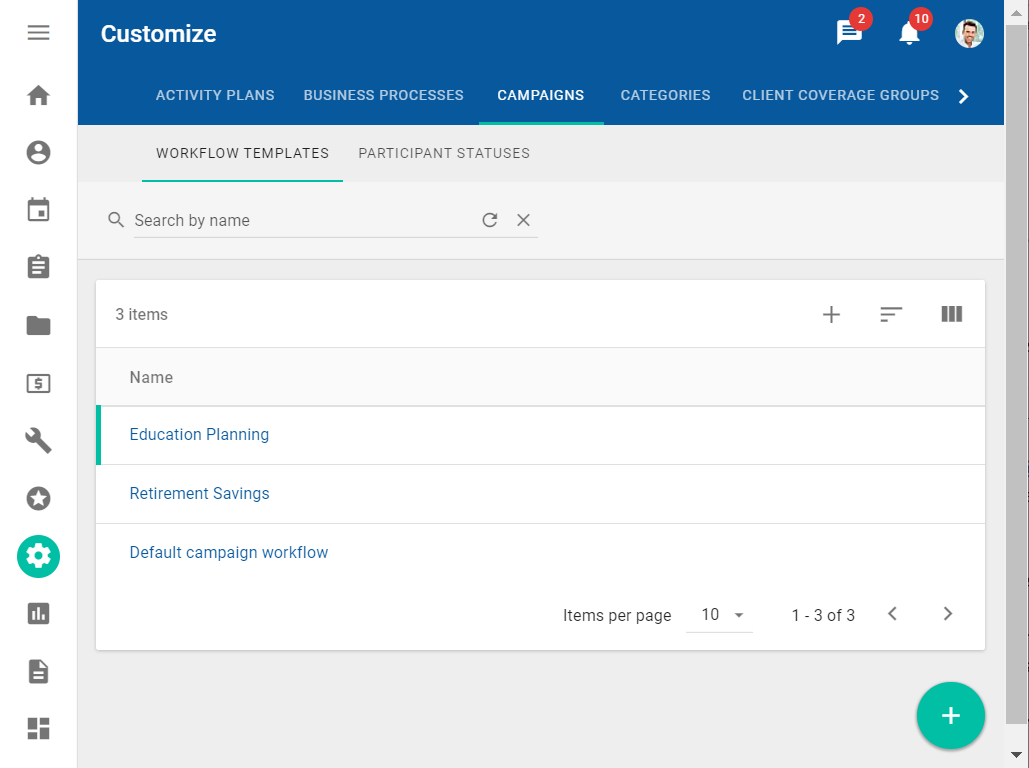
The Workflow Templates subtab displays the list of the existing campaign workflow templates. You can use the tab to create a new template, to edit an existing template, or to delete an existing template.
The default campaign workflow is initially assigned whenever a new campaign is created. This template can be modified, but it cannot be deleted.
To configure a new campaign workflow template, you need to complete the following steps:
-
Create the new template.
-
Configure the statuses that should be included in the template.
-
Specify which statuses should be used for specific campaign stages.
-
Configure the actions that should be associated with each status in the template.
Creating campaign workflow templates
To create a new campaign workflow template, click the Add button 
The new template includes all available statuses and does not have any actions configured for any status. To further configure the new template, you can modify the statuses included in the workflow and which actions are associated with each status. It also specifies which the statuses should be used during specific steps of the campaign workflow. By default, when the campaign is in the Planning stage, then all participants have the Targeted status. As soon as the campaign has been started and moves into the In Progress stage, the status for all participants changes to Contacted.
Modifying campaign workflow template statuses
To indicate which statuses should be included in the workflow template, click the template name. The detailed view of the workflow template is displayed.
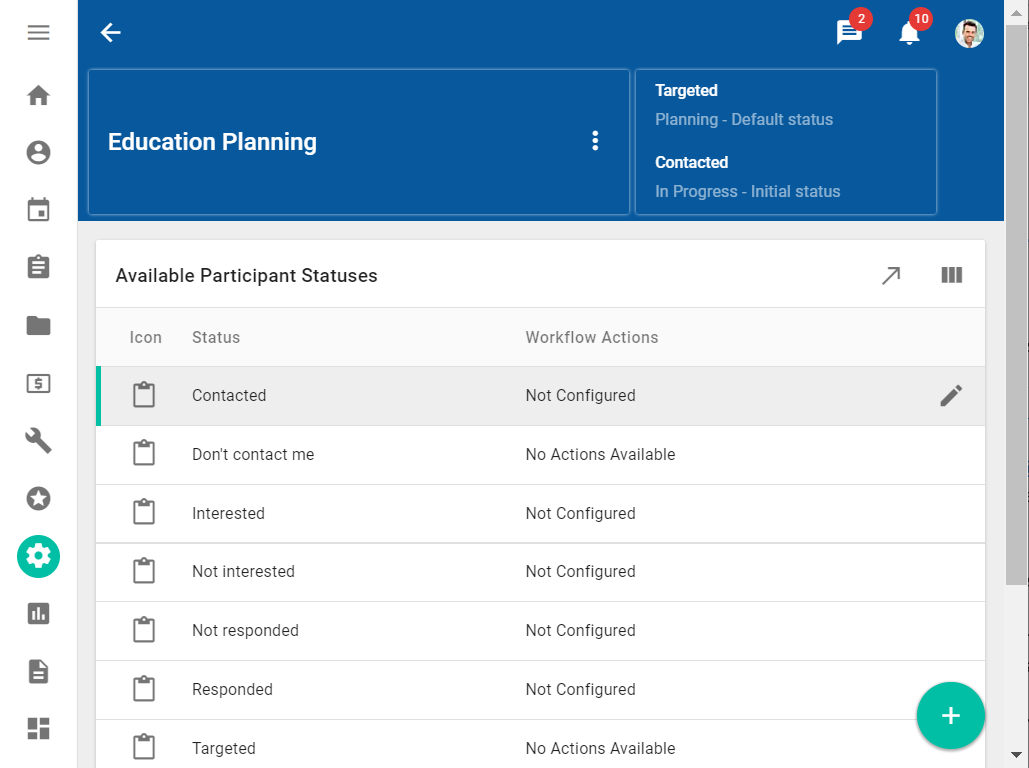
In the Available Participant Statuses table, click the Select status button 
The default status for the Planning stage and the initial status for the In Progress stage are required and cannot be removed. By default, these are the Targeted and Contacted statuses.
After you have ensured that the correct statuses are included in the workflow, you can associate actions with each status.
Modifying actions and future statuses associated with campaign workflow template statuses
The detailed view of the workflow template is displayed. It lists all the participant statuses included in the workflow template.
You can now associate one or more actions with each status. You can also indicate supported future statuses for participants with this status.
Click the Edit button 
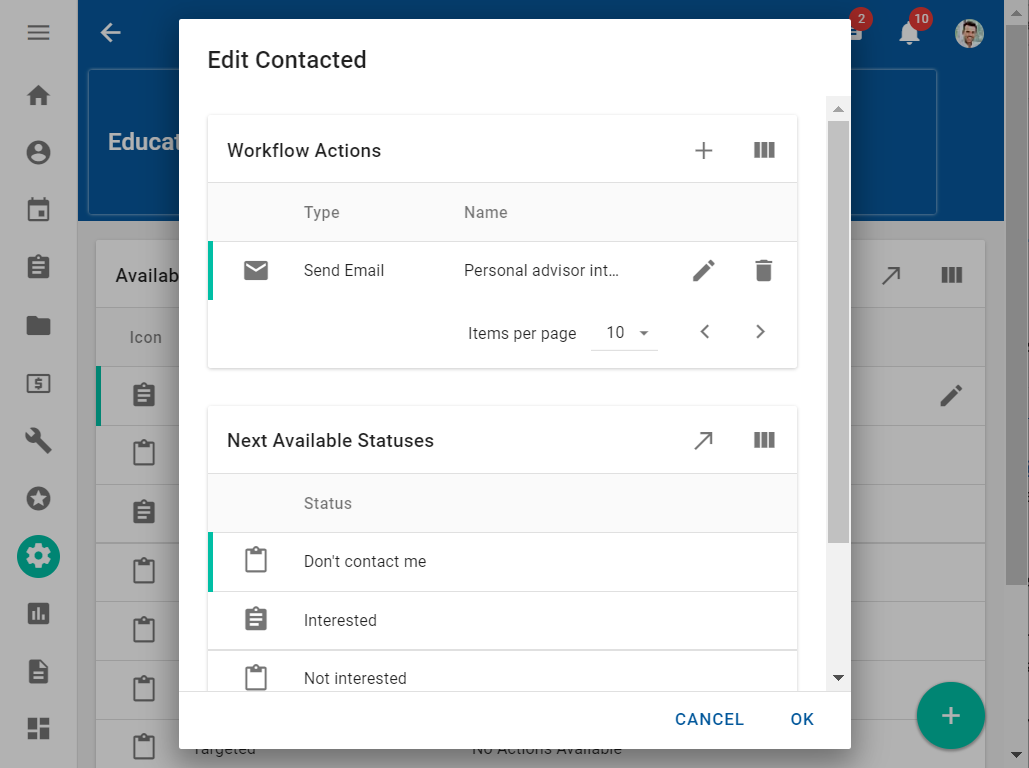
In the Workflow Action area of the dialog, click the Add button
-
Create task
-
Create meeting
-
Create opportunity
-
Print document
-
Send email
You can specify whether the email should be sent as soon as a participant's status has changed, or after a delay.
You can also use an existing document as a template for the email. Click Select Email Template and select a document from all existing documents stored in the Document Manager.
For more information about documents and campaigns, see Documents. For more information about personalizing the email for each participant, see Using tokens.
-
New activity plan
Specifying next available statuses
You cannot associate any actions with Targeted and Do not contact statuses.
In the Next Available Statuses area of the dialog, click the Select button
If you do not define the next available status for the selected status, then the selected status for a participant cannot be changed during a campaign. The selected status indicates a final step in the workflow.
By default, only the Don't contact me and Targeted statuses do not have any next available statuses and no other next available statuses can be added.
Updating special participant statuses
After you have configured all the statuses included in the workflow, you need to confirm which statuses should be used during specific steps in the flow. You need to confirm the following statuses:
-
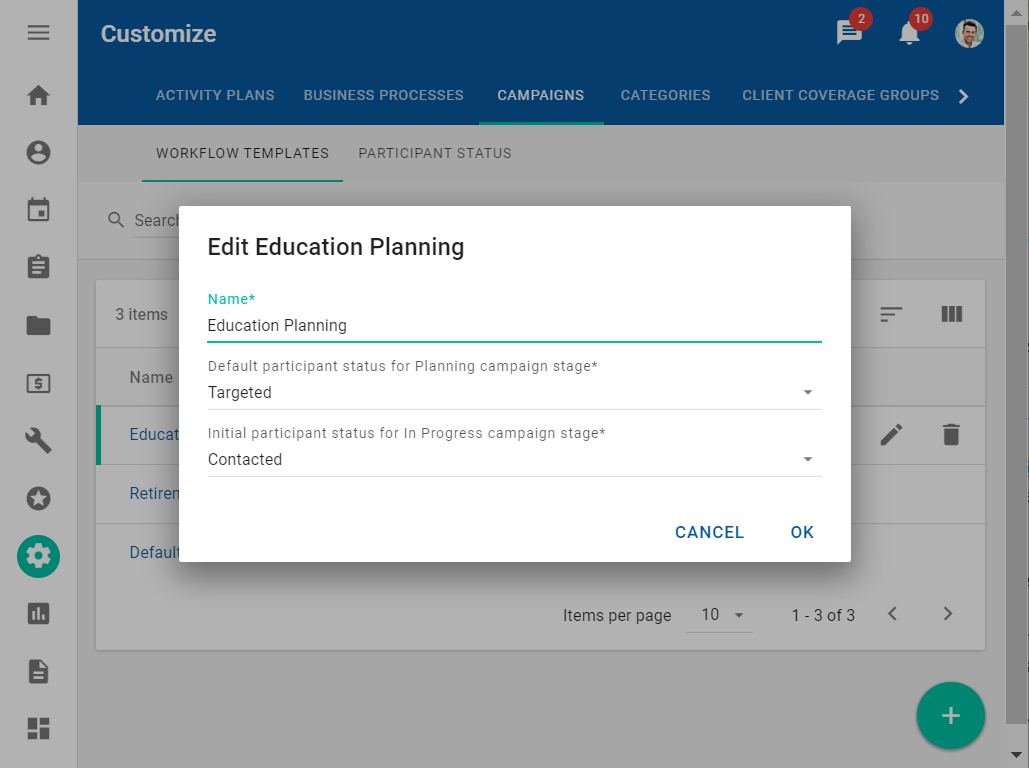
When the campaign is in the Planning stage, then all participants have the same status. This status does not have any associated workflow actions. It has only one next available status, which is the initial status of the In Progress stage. By default, this is the Targeted status.
-
When the campaign has started and the campaign stage has changed to In Progress, then the status for all participants changes to the same status. By default, the initial status for the In Progress stage is Contacted.
To change one of the special participant statuses, click the Edit button on the data table row with the template name, select the appropriate values in the dialog that appears, and then click OK.
Deleting campaign workflow templates
To delete a template, click the Delete button 
If the template is being used in a campaign, it cannot be deleted.
The default workflow template cannot be deleted at any time, even if it is not being used.
Using campaign workflow templates
Campaign workflows are displayed on the Campaigns workspace 
-
After a new template has been created, you can use it in any campaign. In the Workflow card, click the Select Template button
-
After an existing template has been modified, the Reload template button

You can only select or reload workflow templates while the campaign is in the Planning stage.
After a template is selected or reloaded, you can make any required changes or customizations in the Workflow card.
Selecting a new template or reloading the existing template resets all current workflow actions. Any customizations you might have made to the available statuses or associated actions will be lost.
For more information about campaigns and campaign workflows, see Campaigns.
Managing user-defined participant statuses
The participant status indicates where in the flow of the campaign the participant is. For example, a participant's status can indicate whether the participant has been contacted, whether they have replied to the campaign email, or whether they indicated that they were interested in the opportunity.
System defined participant statuses are included by default. The names of these statuses cannot be changed. You can also define custom statuses to reflect your company's processes.
To manage campaign workflow templates, open the Campaigns tab on the Customize workspace
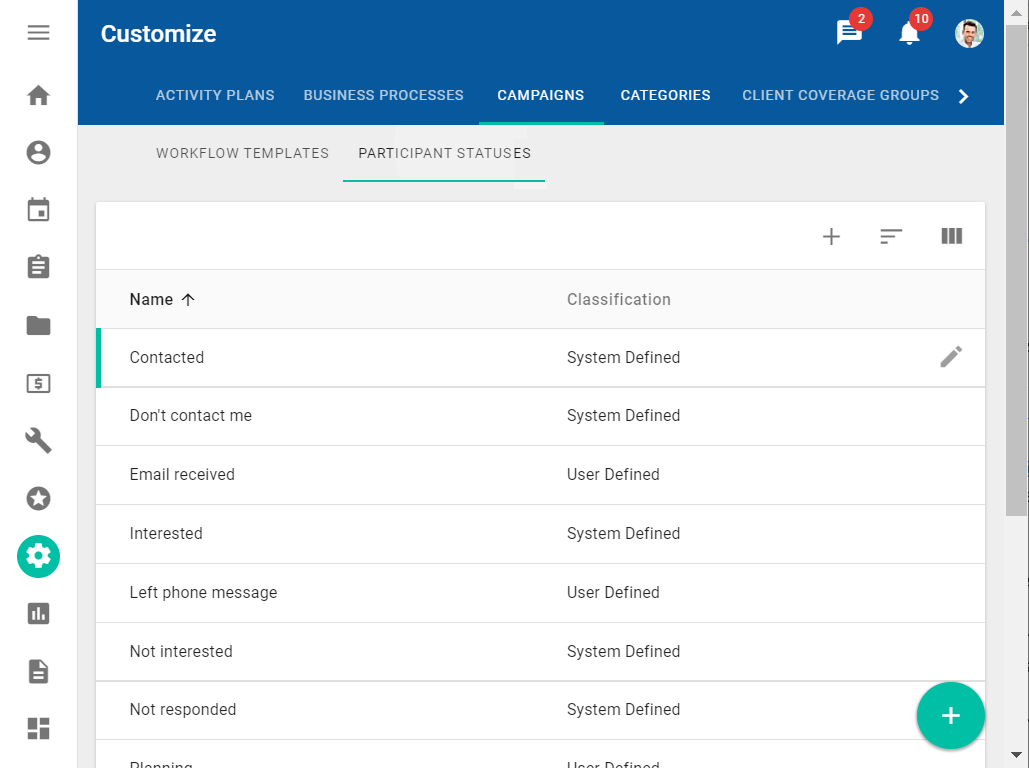
The Participant Statuses subtab displays the list of existing system-defined and user-defined participant statuses. You can use the tab to create a new participant status or to rename an existing user-defined participant status.
-
To create a new participant status, click the Add button
-
To rename a user-defined participant status, click the Edit button
You cannot create multiple participant statuses with the same name. Each participant status name must be unique.
System-defined participant statuses cannot be renamed.