
Starting with NexJ CRM version 25.05, the application can now display native notifications that appear in the browser and on a mobile device.
Enabling native notifications
You can enable the notifications in one of two ways.
When the application displays a request similar to the following, click Yes.
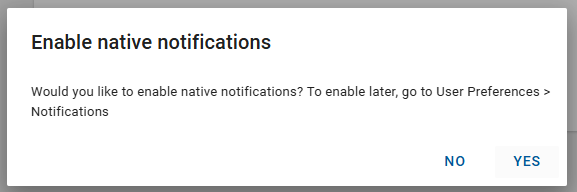
If you click No but later decide you would like to see notifications, navigate to the User settings dialog in the top right corner of the application and select User Preferences. On the Notifications tab, on the Enable user notifications card, click Enable.
After notifications are enabled in the application, you may also receive a browser request to confirm that you want to see the notifications.
In this release, the browser notifications are only displayed for alarms and only while the application is running in the browser. The notifications are not displayed if the application tab has been closed.
Disabling native notifications
If you decide that you do not want to see these notifications, you can disable them in your browser. Different browsers and browser versions may have slightly different instruction for this. You can disable all native notifications or just the notifications for NexJ CRM.
To disable native notifications in Microsoft Edge, follow instructions in Manage website notifications in Microsoft Edge - Microsoft Support.
To disable native notification in Google Chrome, follow instructions in Use notifications to get alerts - Computer - Google Chrome Help.
This functionality might be managed by your IT department and unable to be changed by individual users.
Troubleshooting native notifications
If the native notification functionality is not behaving as expected, verify that it has not been disabled for your browser or operating system as described above.
In Google Chrome, the Memory Saver feature turns off notifications from any website or tab that isn’t currently active. If this feature is enabled, NexJ CRM will be unable to display native notifications. To disable this feature, navigate to the Chrome Settings menu and open the Performance page. In the Memory section, turn off the Memory Saver option.