To view the definition for a process, click on the process in the processes data table to open the Process Details page.
The banner on the Process Details page shows the subject area for the process and whether snapshots and streaming exports are enabled or disabled.
When viewing a definition, you can:
-
In the History tab, review the status and history information for snapshots and near-real time streaming exports for a process (for more information see Reviewing the status and history for real-time streaming exports and Reviewing the status and history for snapshots).
-
In the Preview tab:
-
To update the object count, click the Refresh button

-
To retrieve the preview data, and update the Message and Data subtabs, click Load Preview Data.
-
In the Data subtab, review the current data for a process. You can sort the data in the columns by ascending or descending order.
-
Click the links for collections

Collections can be identified by their default fields. The default field is displayed in a process to represent the selected collection whether the default field is selected or not (for example, the default field for the Activities collection is the Description field). -
In the Message subtab, review the output message structure formatted in JSON. If you have selected the Apache Avro message format for snapshot publishing and streaming exports in the Publishing Options tab on the Create Process page, you can generate a .json file that contains the Avro schema by clicking Export Avro Schema. For more information about selecting the Avro message format, see Creating processes.
-
In the Data subtab and Message subtab, you can review the estimated number of records (items) that will be exported for a snapshot before you publish the snapshot. To refresh the number of records, click the Refresh button
-
-
In the Errors tab, review the error information for snapshots or real-time streaming exports for a process (for more information see Error handling for snapshots and real-time streaming exports).
-
In the About tab, review information for the process that includes: the subject area name, the date when the process was last updated, the amount of records, the Kafka topic name and format, selected publishing options, if applicable, the next scheduled run time of the process, and the fields and filters that have been selected for the process definition.
From the Process Details page, you can:
-
Publish the process to export the data from NexJ CRM to the publishing endpoint (Kafka, delimited file, HTTP file, or JSON file) by clicking the Publish Snapshot button

-
Make changes to the process by clicking the Edit button

-
Perform the following actions by clicking the More Actions button

-
Export the process raw data and JSON definition by selecting Export Definition. If you have selected publishing options for the process on the Create Process page, these options will also be exported with the JSON definition.
-
If you have selected the Avro message format for either or both snapshot publishing and streaming exports on the Create Process page, export the Avro schema for the process as a .json file by selecting Export Avro Schema.
-
For more information about how to perform these tasks, see Modifying processes and Exporting process definitions.
Viewing fields of a collection
On the Create Process page, and in the Data subtab, the collections icon
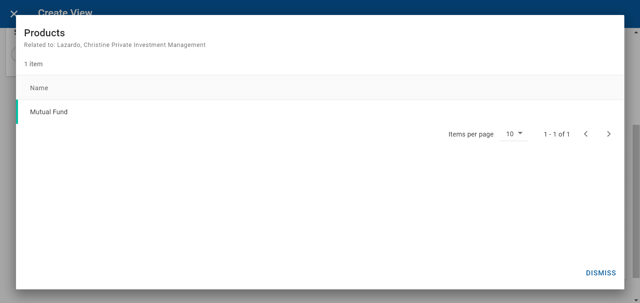
For example, a contact can be assigned multiple types of products as part of an opportunity (deal), such as advisory services or mutual funds. When a Products collection is included in a process, you can click a collection name link in the Data subtab to view which contact the collection is associated with, and which products, and the default field for the collection, which is Name. The following screenshot shows the dialog that displays when you click a link of the collection name. In this example, the contact has one product, which displays in the Products data table.